Ideas & brainstorming
Customize idea expansion labels
Updated May 20261 min read
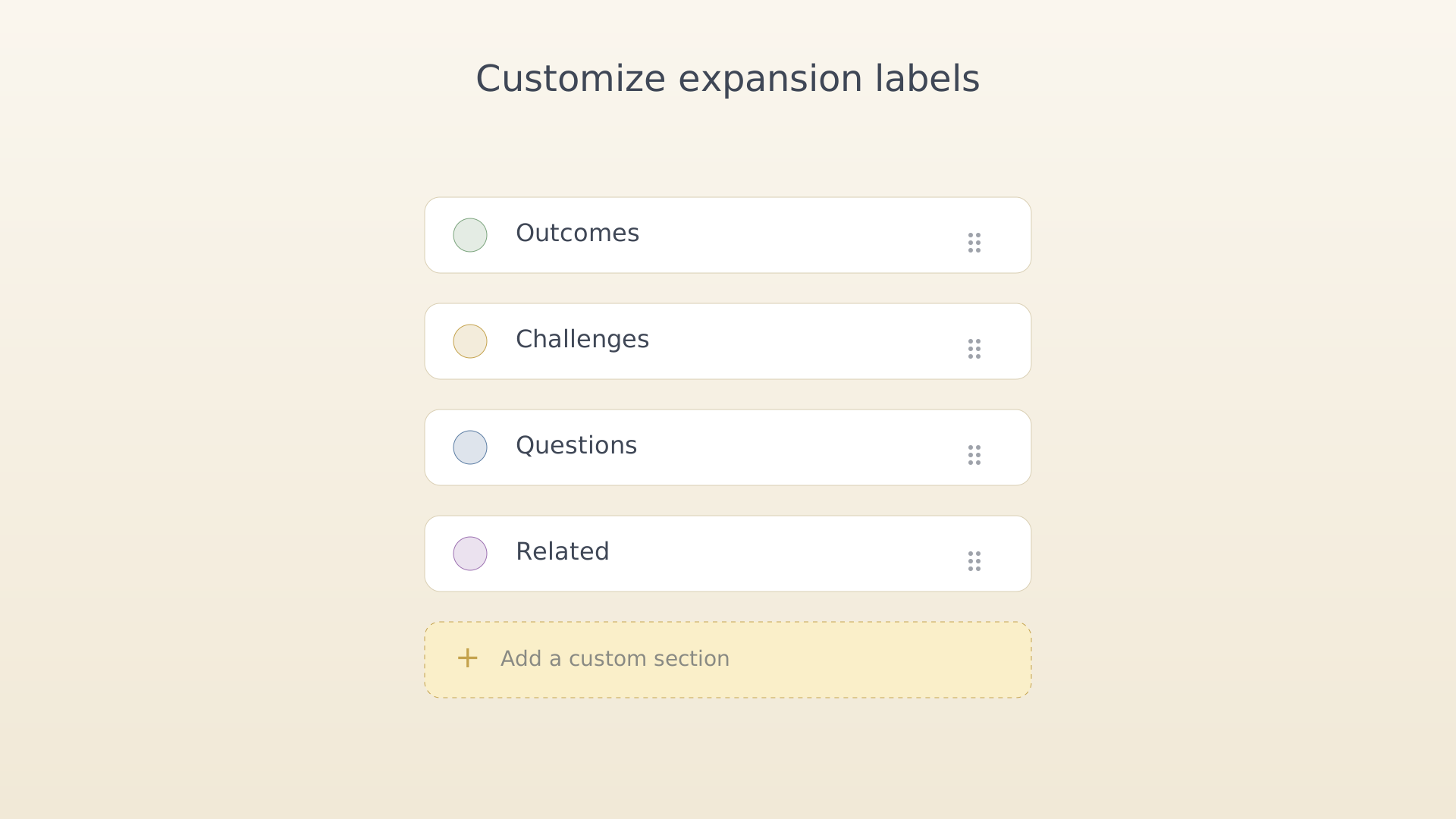
The Brainstorm screen ships with four expansion sections — Outcomes, Challenges, Questions, and Related — that cover most ways of unpacking an idea. If your thinking has its own vocabulary, you can rename them or add new sections that show up on every idea.
From settings
- Open Settings (sidebar → Settings).
- Tap Expansion labels under the Ideas section.
Settings with Expansion labels highlighted - Tap a label to rename it, drag to reorder, or tap + to add a
new section. Save to apply across the Brainstorm screen.
Expansion labels editor open
Tips
- Renames apply to existing ideas — every brainstorm shows the new label immediately. The items inside the section stay where they were.
- Removing a label hides its section but does not delete its items. Re-add the label to see them again.
See also
Was this article helpful?
Related articles
Capture an ideaQuickly capture a rough idea in IdealWeek before it slips. Use the QuickPlus dial from any screen, the + button on the Ideas screen, or speak it with voice input for AI-assisted structuring.Dictate an idea with voiceSpeak an idea into IdealWeek and let the AI structure it. The microphone in the idea editor turns voice input into a title, description, and starting expansion items.Brainstorm and expand an ideaOpen the Brainstorm screen for any captured idea in IdealWeek and add detail to its expansion sections — outcomes, challenges, questions, and related notes — with drag-to-reorder.