Notifications
Schedule activity reminders
Updated May 20261 min read
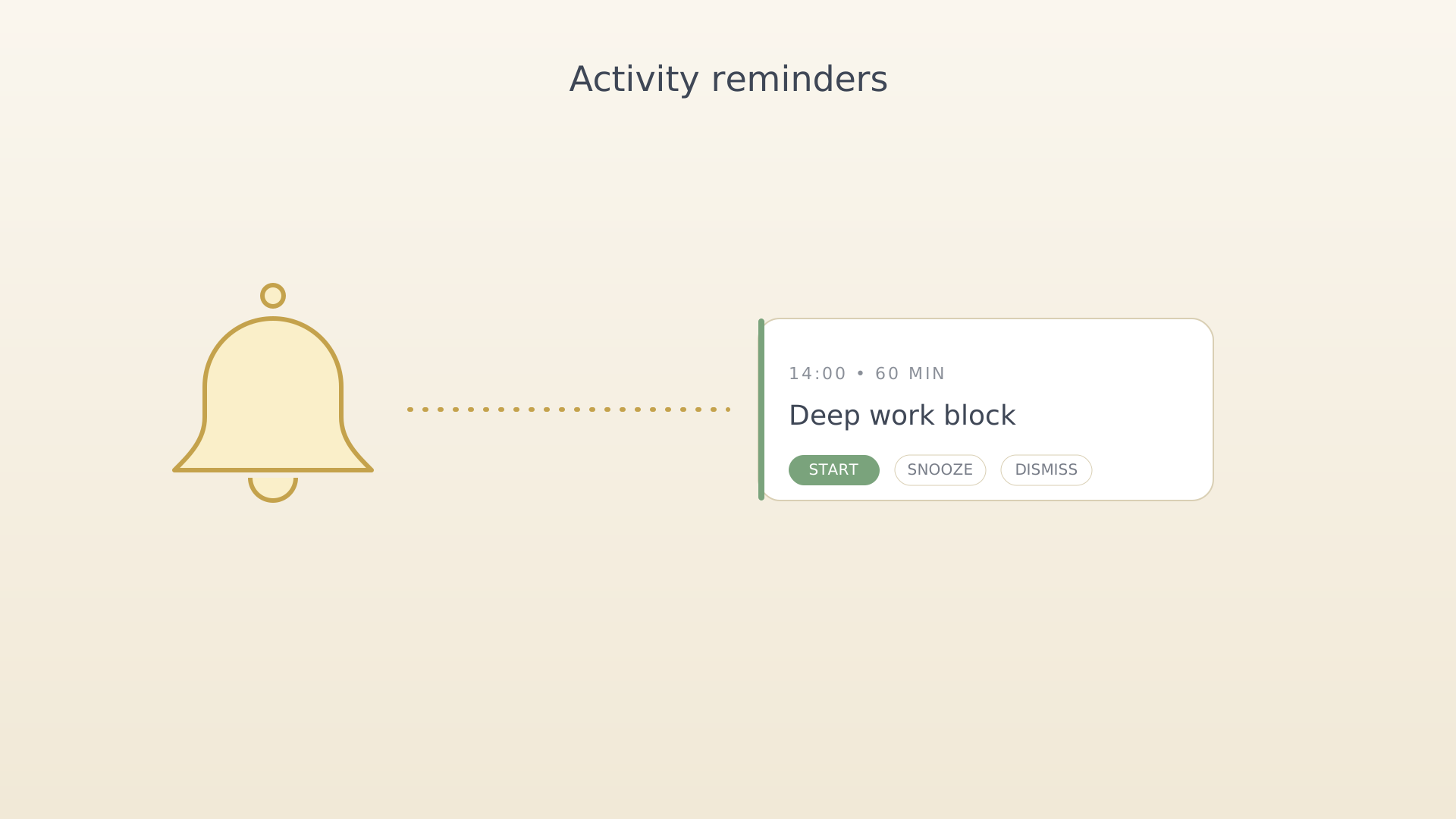
When the Scheduled Activity Notification toggle is on, every activity on your timeline fires a notification a few minutes before its start time. The notification offers Start, Snooze, and Dismiss actions so you can move straight into focus mode.
From settings
- Open Settings (sidebar → Settings).
- Scroll to the Notifications section.
- Toggle on Scheduled Activity Notification.
Toggle row in settings - The first time you turn it on, the OS asks for the notification permission. Accept to receive the alerts.
Tips
- Adjust how long a snooze lasts with Configure snooze duration.
- The lead-time is fixed at a few minutes per scheduled activity — there's no per-activity override.
See also
Was this article helpful?
Related articles
Set a check-in reminderSchedule a daily reminder that prompts you to check in on objective progress in IdealWeek. Toggle Check-in Reminder in Settings → Notifications and pick a time that fits your routine.Set daily quote timeReceive a daily motivational quote at the time of your choice in IdealWeek. Toggle Daily Motivation Quotes in Settings → Notifications and pick the hour the quote should arrive.Configure snooze durationChoose how long IdealWeek snoozes a notification when you tap Snooze. Pick from 1, 3, 5, 10, or 15 minutes in Settings → Notifications → Snooze Time.