Account & Premium
Sign in to the web app with QR
Updated May 20261 min read
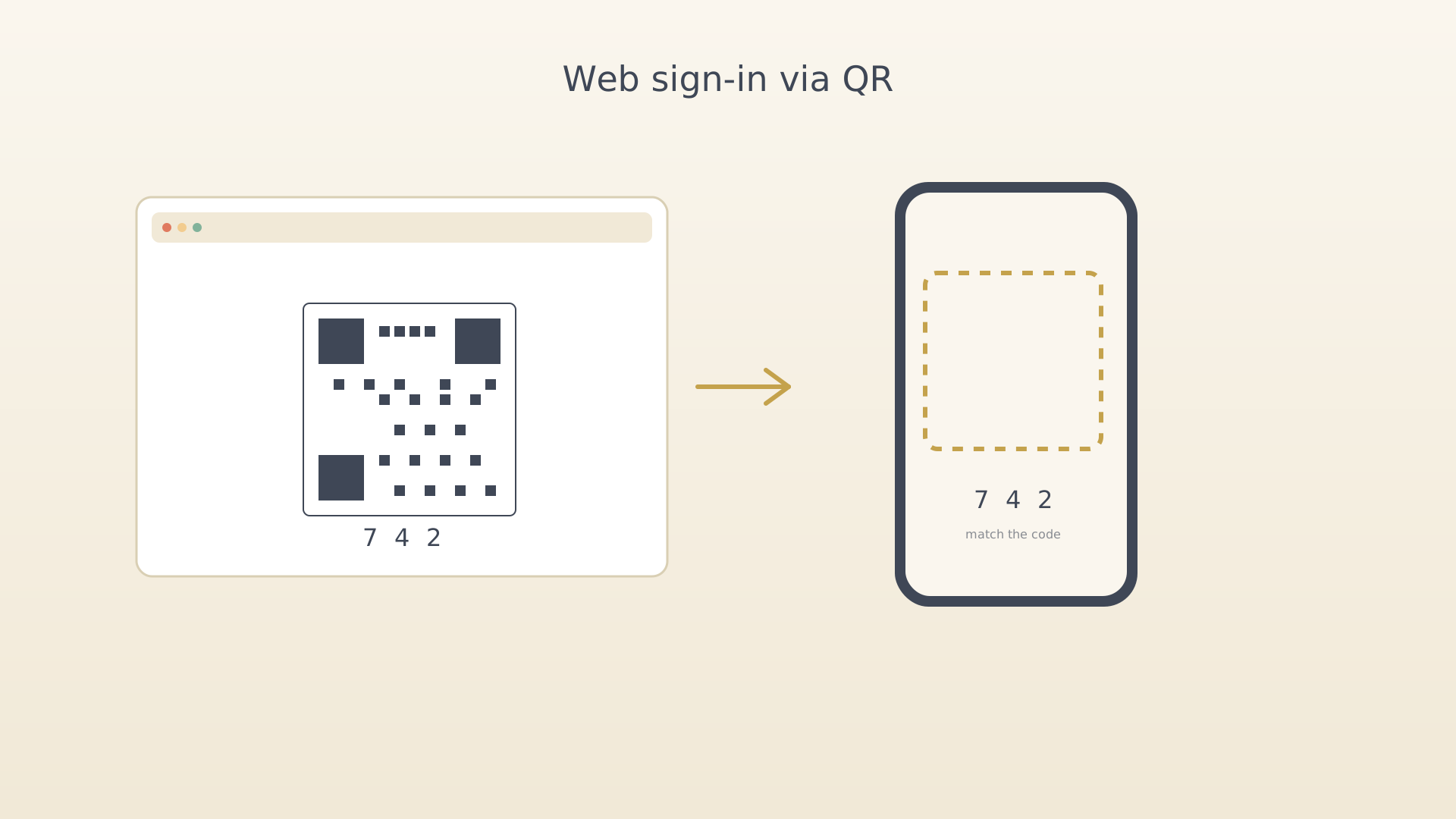
The IdealWeek web app signs in by pairing with the mobile app — there's no password to remember. The whole flow is three short steps.
From the web app
- Open the web app in your browser. The sign-in screen shows a QR
code with a pairing code below it.
Web sign-in QR
From the mobile app
- Open the mobile sidebar and tap Scan QR Login.
Sidebar with Scan QR Login - Scan the QR displayed on the web. A confirmation screen lists the pairing code from the web.
- Match the code by selecting the same digits on the mobile pairing
wheel. Confirm to sign the web app in.
Pairing-code confirmation
Tips
- The QR is single-use and expires within a few minutes for safety.
- Web access is a premium feature — see Subscribe to premium.
See also
Was this article helpful?
Related articles
Subscribe to premiumUpgrade to IdealWeek premium for cloud sync, web access, and advanced AI assistance. Open the paywall card or tap Upgrade in Settings, then complete the purchase through your app store.Replay an in-app tutorialRe-run an in-app tutorial in IdealWeek when you want a refresher. Open the sidebar on the screen you want to revisit and tap the tutorial replay button.