Notifications
Set daily quote time
Updated May 20261 min read
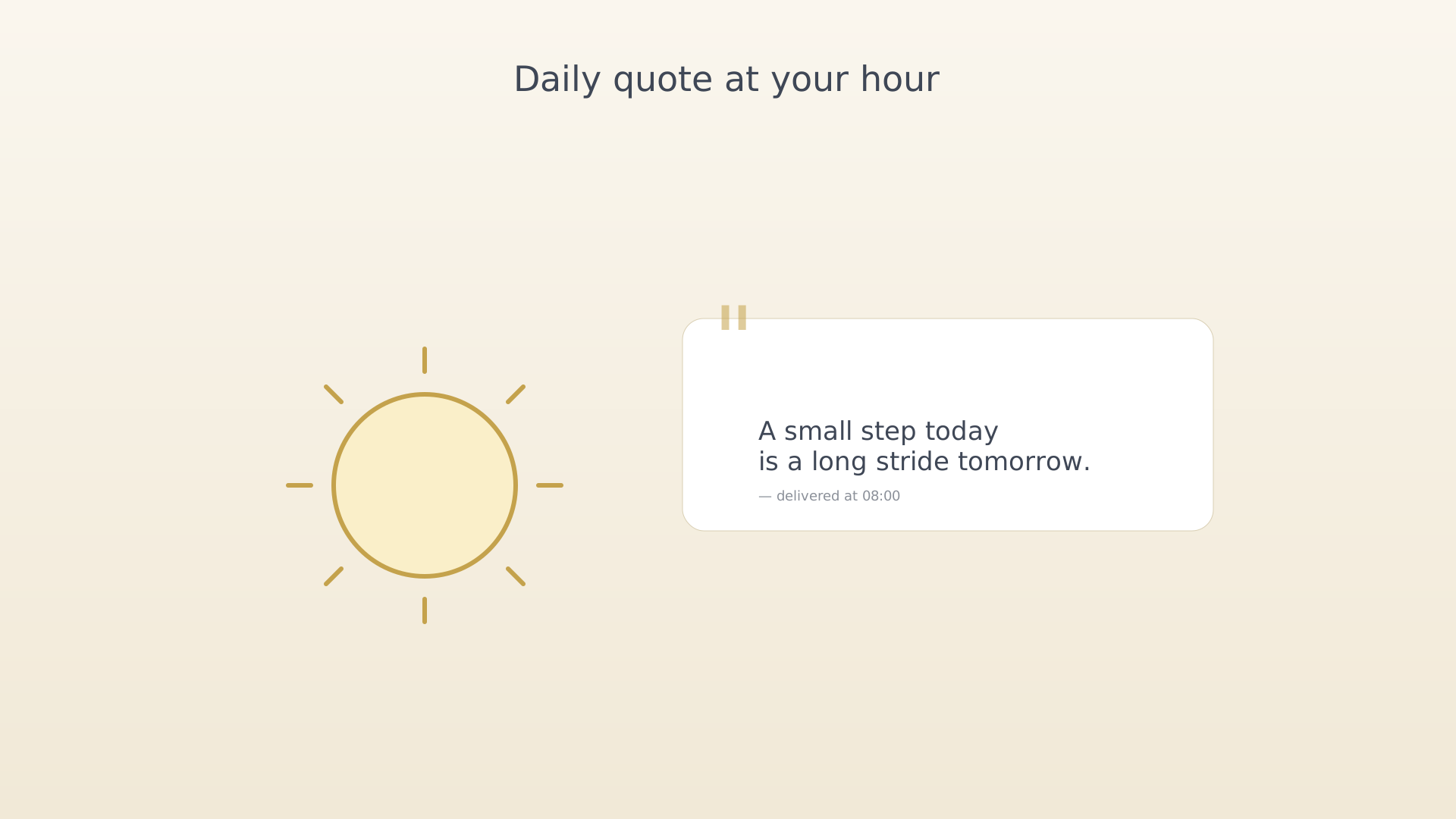
A daily quote lands in your notification tray at the time you pick — a soft nudge of perspective. The same quote also shows on the Motivation screen quote bar throughout the day.
From settings
- Open Settings (sidebar → Settings).
- Scroll to the Notifications section.
- Toggle on Daily Motivation Quotes.
Daily Motivation Quotes toggle - Tap the time row below the toggle to set when the quote arrives.
The default is 8:00 AM.
Time picker for the daily quote
Tips
- Pick a time you actually look at your phone — first coffee, lunch, or bedtime tend to land best.
- Disable the toggle to stop receiving quotes; the Motivation screen quote bar still shows them on demand.
See also
Was this article helpful?
Related articles
Schedule activity remindersTurn on activity reminders in IdealWeek so each scheduled activity surfaces a notification a few minutes before it starts. Toggle Scheduled Activity Notification in Settings → Notifications.Set a check-in reminderSchedule a daily reminder that prompts you to check in on objective progress in IdealWeek. Toggle Check-in Reminder in Settings → Notifications and pick a time that fits your routine.Configure snooze durationChoose how long IdealWeek snoozes a notification when you tap Snooze. Pick from 1, 3, 5, 10, or 15 minutes in Settings → Notifications → Snooze Time.