Ideas & brainstorming
Pin or unpin an idea
Updated May 20261 min read
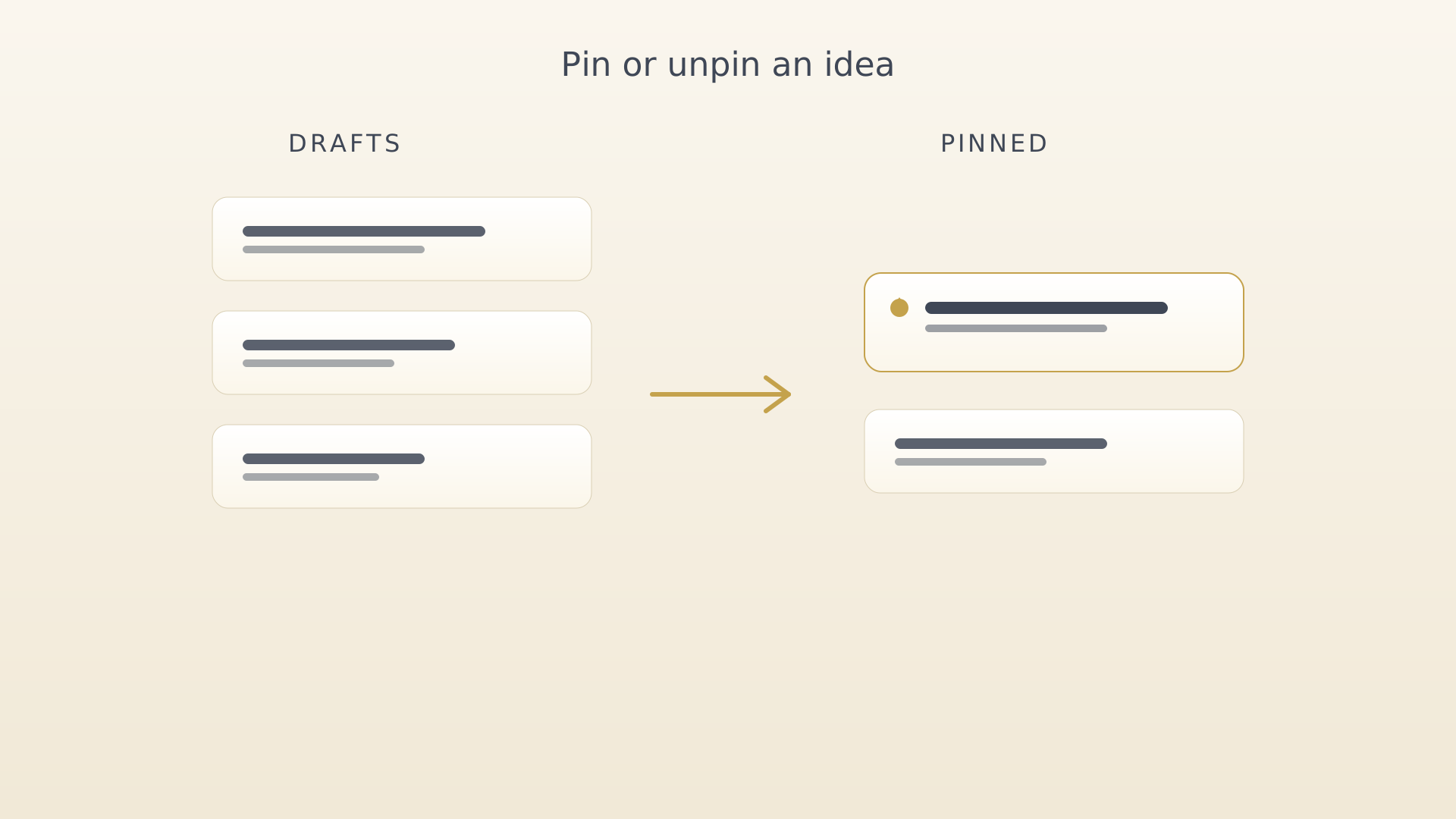
The Ideas screen splits ideas into two stacks. Drafts is everything you captured but haven't decided on. Pinned is the smaller list of ideas worth keeping in front of you. Pinning and unpinning is a single context menu tap away.
From the idea card
- Open the Ideas screen (sidebar → Ideas).
- Tap an idea card to open its context menu.
- Choose Pin (or Unpin if it's already pinned). The card moves to
the other stack immediately.
Idea context menu with Pin highlighted
Tips
- Pinned ideas are the candidates that warrant a brainstorm or a promote. Don't let the pinned list grow indefinitely — be willing to unpin too.
- The Ideas mindmap export only includes pinned ideas by default. See Export an ideas mindmap.
See also
Was this article helpful?
Related articles
Capture an ideaQuickly capture a rough idea in IdealWeek before it slips. Use the QuickPlus dial from any screen, the + button on the Ideas screen, or speak it with voice input for AI-assisted structuring.Dictate an idea with voiceSpeak an idea into IdealWeek and let the AI structure it. The microphone in the idea editor turns voice input into a title, description, and starting expansion items.Brainstorm and expand an ideaOpen the Brainstorm screen for any captured idea in IdealWeek and add detail to its expansion sections — outcomes, challenges, questions, and related notes — with drag-to-reorder.