OKRs
Reorder objectives
Updated May 20261 min read
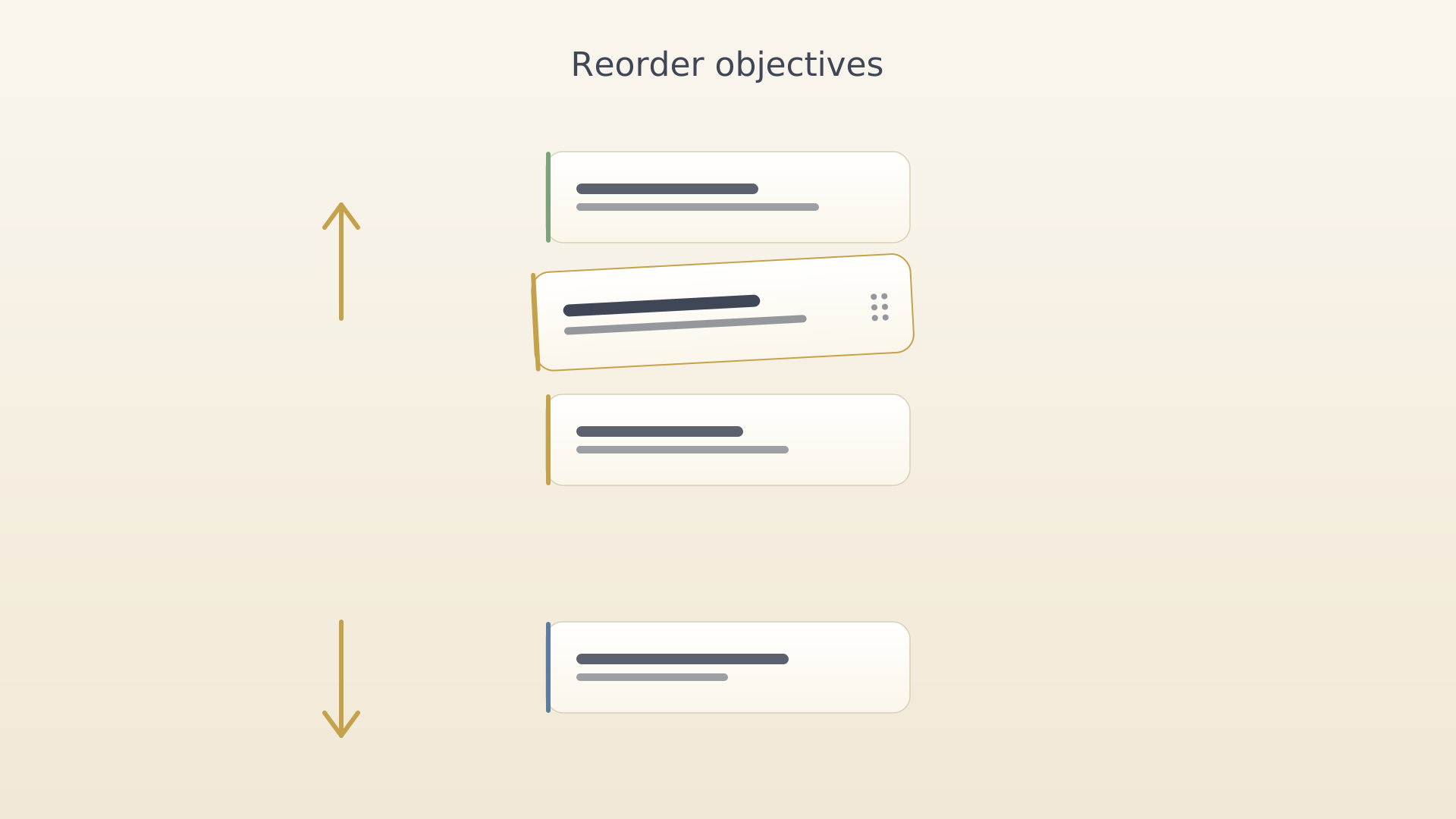
The order of objectives on the home screen mirrors the order across the rest of the app — insights, exports, and the QuickPlus pickers all follow it. Two gestures change the order without leaving the home screen.
By drag-and-drop
- Long-press an objective card. It lifts under your finger.
Long-pressed objective lifted - Drag it up or down past other cards. They shift to make room.
- Release to drop the card into its new position.
Dropped into new position
From the context menu
- Tap an objective card to open its context menu.
- Choose Move up or Move down. The card slides one position.
Context menu with Move up highlighted
Repeat to move the card further. The first item's menu hides Move up, the last item's hides Move down.
Tips
- Drag-and-drop is faster for large reorderings; the menu is more precise when you only need to nudge one card up or down by one slot.
- The order persists across sessions and devices — there's no separate "save" step.
See also
Was this article helpful?
Related articles
Create an objectiveSet a new quarterly objective in IdealWeek using the QuickPlus dial. Capture the title and description, link a category, and save — your new objective appears on the home screen alongside its key results.Edit an objectiveUpdate the title, description, deadline, or category of an existing objective. Open the objective's context menu from the home screen, choose Edit, and save your changes.Assign a category to an objectiveTag an objective with a category in IdealWeek to group it by life area. Pick from the category selector inside the objective editor, or manage your category list from settings.